How to use SF Manager
Everything the extension does, step by step. Tools marked LIVE work against your org. Tools marked PREVIEW show sample data only.
Install
- Open the Chrome Web Store listing and click Add to Chrome. It also works in Microsoft Edge and other Chromium browsers.
- Pin the extension: click the puzzle icon in the toolbar, then the pin next to SF Manager.
Connect your org
Automatic (recommended)
- Log into Salesforce in a normal browser tab (Lightning or Classic, any org type).
- Click the extension icon. The popup shows the detected org. Click Open full app, or use the floating Super Console button on any Salesforce page.
- The app opens in a tab right next to your Salesforce tab, never in a separate window.
Other ways
- OAuth 2.0: Connect org → OAuth. Enter the Consumer Key of your own Connected App whose callback URL is the one shown in the dialog.
- Access token: paste an instance URL and session id (for example from the Salesforce CLI).
- Try demo data: explore every screen with a built-in sample org. Nothing touches Salesforce.
Finding your way around
- Tab bar: every tool is a tab. Star ⭐ a tab to pin it to the front. Use the search box in the header to jump to a tool by name.
- Preview badge: tabs with a yellow PREVIEW badge use sample data and don't read your org yet.
- Red banner: if Salesforce returns an error (for example an expired session), a red banner explains it and offers Retry. The extension never substitutes fake data for your org's.
API limits & data loading
Every Salesforce org has a daily API allowance. The extension is designed not to waste it:
- Nothing loads until you click. Tools that read data show a Load data button that tells you roughly how many API calls it will use.
- Field permissions for all profiles load in one call per object, not one per profile.
- Read-only metadata responses are cached per org for 10 minutes. Any save clears the cache so you always see the result.
- Query results (SOQL, REST) are always fresh, and nothing polls in the background.
The Org Debug button in the header shows how many calls this session made and how many the cache saved.
Field-level security LIVE
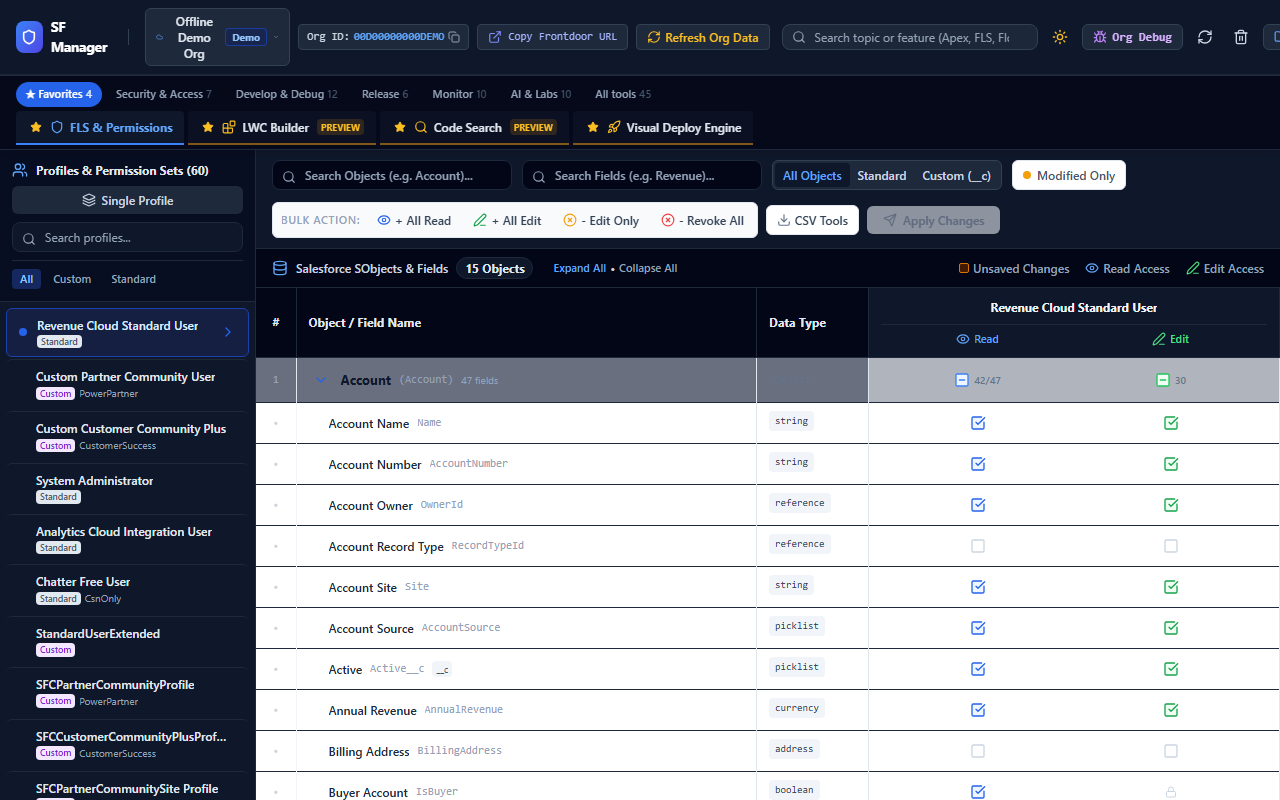
- Click Load profiles & objects.
- Pick a profile on the left. Toggle Multi-profile to edit several at once.
- Search for an object, expand it, and tick Read / Edit per field. Use the object row to set every field at once, or the Bulk action buttons for all loaded fields.
- Changed cells turn amber, and Modified only filters to them.
- Click Apply Changes. Review the exact before/after list, then Push.
- Made a mistake? Rollback in the header restores the previous state, and Audit Trail keeps the history.
Also here: Clone FLS copies one profile's field permissions to others, Compare shows two profiles side by side, and CSV Tools export or import the matrix.
User Access Analyzer LIVE
Pick a user to see their effective access: object Create/Read/Edit/Delete, View All / Modify All, and readable/editable field counts, combined from their profile and every assigned permission set. Hover a row to see which profile or permission set grants it.
Record Access Inspector LIVE
"Why can't Priya see this record?" Pick the user, paste the record Id, and click Inspect access. You get Read/Edit/Delete/Transfer for that exact record plus a plain-English reason: no object permission, owner, org-wide default, or "object access is fine but the record isn't shared".
Security & Performance LIVE
Active flow inventory, user security audit (admins and profiles), Login-As links and security reports. The agent risk and heap sub-tabs are preview-only.
SOQL Console LIVE
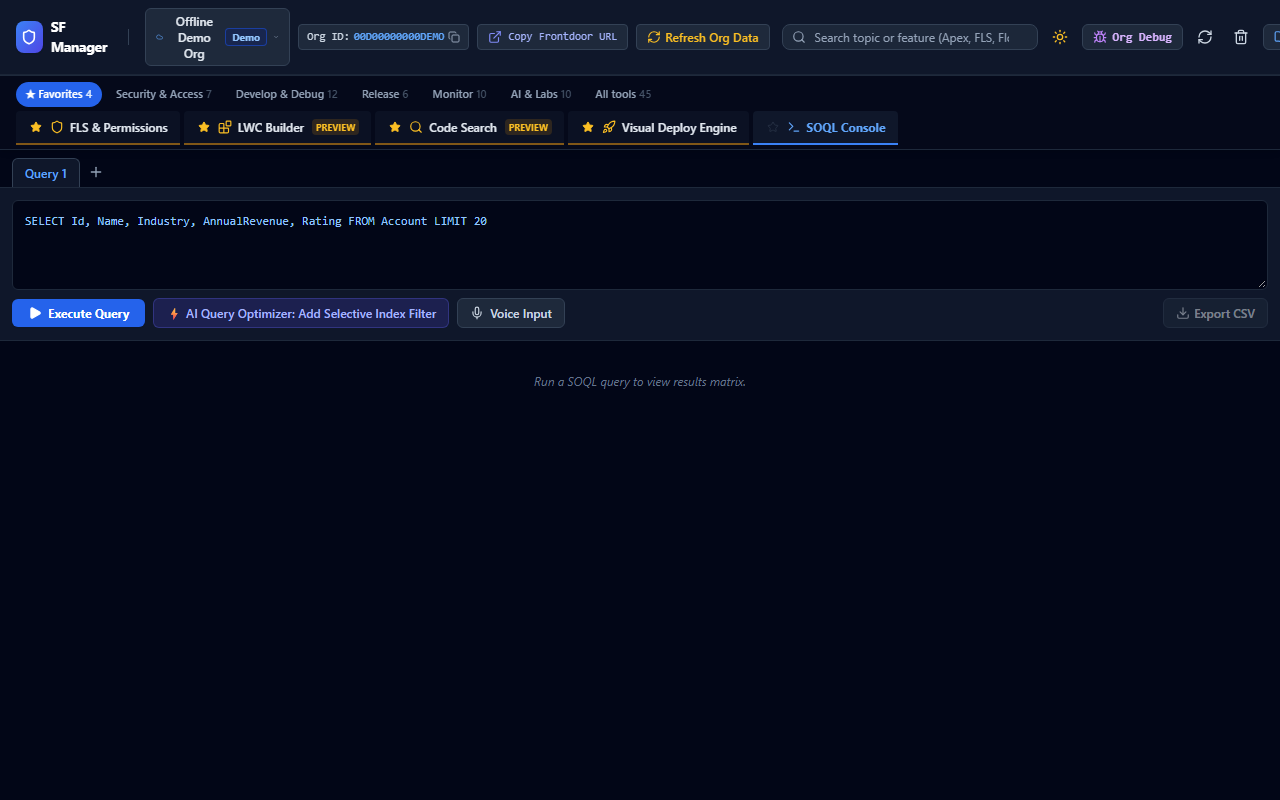
Write a query, click Execute and get results in a grid. Open several query tabs and export to CSV. Salesforce errors are shown exactly as Salesforce returns them, with row and column.
Tooling & REST Explorer LIVE
Call any REST or Tooling endpoint (GET/POST/PATCH/DELETE) and see the raw JSON. Presets cover common calls such as describe, limits and platform events.
Anonymous Apex & jobs LIVE
- Write Apex (or start from a template) and click Run Execute Anonymous.
- The output panel shows the real debug log, including your
System.debuglines. The extension sets a 1-hour trace flag for you, the same way the Developer Console does. - Compile errors show the line and column.
- The Async Jobs and Scheduled Jobs sub-tabs list batch, queueable, future and scheduled jobs. Auto-refresh is off by default to protect your API limits.
Debug Logs LIVE
Click Fetch Logs to list recent Apex logs. Click one to download and analyze it: duration, SOQL and DML counts, CPU, and a call tree of methods, queries and DML. Only the log you click is downloaded.
Limit Consumption Analyzer LIVE
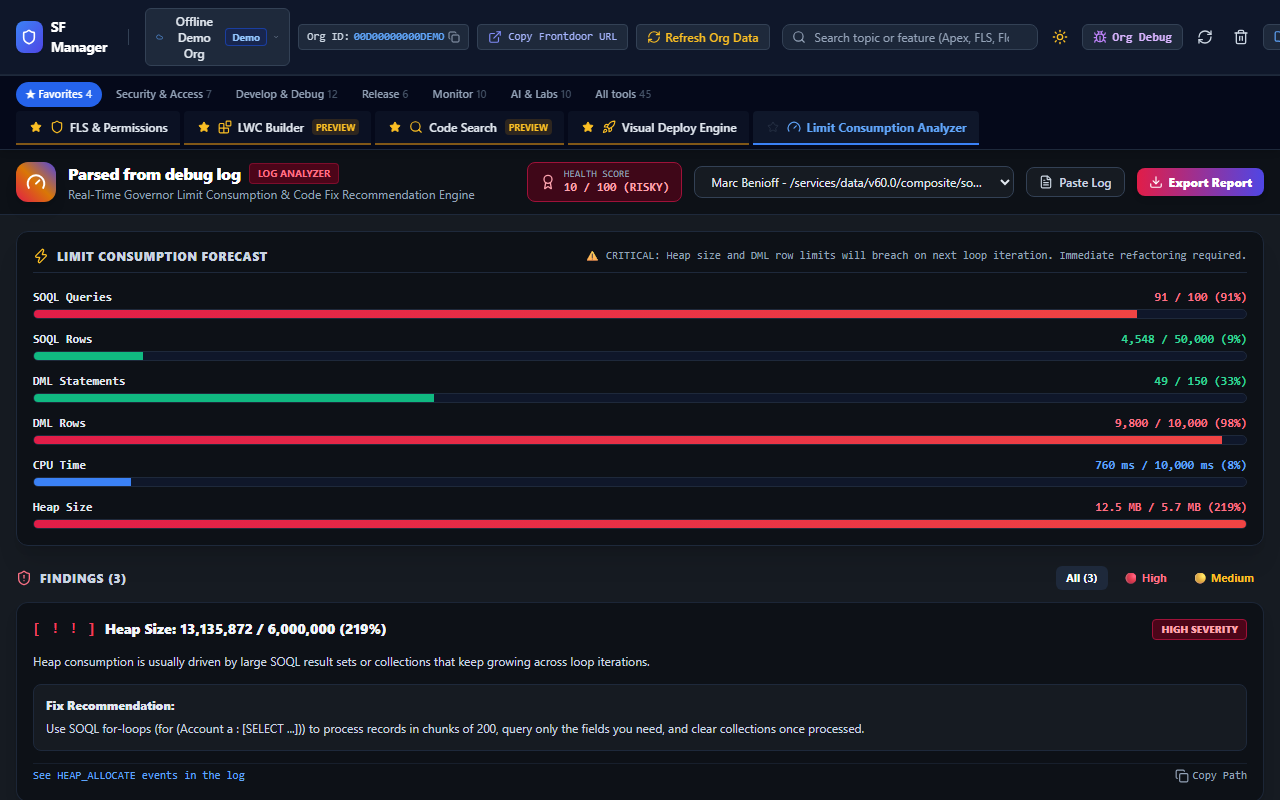
Pick a log, or paste one. Each governor limit (SOQL, query rows, DML, DML rows, CPU, heap) is shown against its maximum, with findings that point to the line numbers issuing the most queries or DML, and how to fix them.
Apex Tests & Coverage LIVE
- Run All Tests runs every local test asynchronously and shows pass/fail, duration and the stack trace of each failure.
- Open Code Coverage → Load coverage:
- Every class and trigger with its coverage %, lowest first.
- Methods covered, for example
5/10. - Click a class to see its source with covered lines in green and uncovered lines in red, each method marked covered or not, and the test methods that cover it.
- Download a CSV (one row per class) or an HTML report you can share, which includes the highlighted source of the open class.
Write Test Class LIVE
The extension writes Apex test classes for you and keeps improving them until they reach your coverage target. It never changes your classes or triggers. It only creates a new test class, and only when you click Save.
- Open Apex Tests & Coverage → ✨ Write Test Class (or click Generate Test Class in the header).
- Click Load Apex classes. Each class shows its current coverage.
- Pick a class (or click Write for all below 75%) and a target (75–95%).
- Click Write test class. Each round:
- writes or improves the test (named
YourClassTest, orYourClassSfmTestif that name is taken) - runs it in your org as a validate-only deploy, so nothing is saved
- reads the exact lines still uncovered, plus any compile errors or failing tests
- repeats until the target is reached (up to 5 rounds with AI)
- writes or improves the test (named
- Review the code, then Copy, download the .cls file, or Save to org. Saving deploys only the new test class.
| Mode | What it does | Typical coverage |
|---|---|---|
| Basic (no key) | Rule-based: creates records for the objects the class uses, and calls every method with normal, empty and large values. Batch, queueable and schedulable classes are run the way Salesforce runs them. | Often 60–100% for straightforward classes |
| AI (your free key) | The AI writes real test data, assertions, branches and callout mocks, then fixes itself from the actual uncovered lines and errors | Usually 75–95% |
Free AI keys: get one or several
AI mode uses your own key, so it's free for you and nobody else can use it. Keys are stored only in your browser and sent only to the provider you choose. Your Apex code is sent to that provider when you use AI mode.
Get a free key (about 2 minutes each)
| Provider | Cost | Steps | Model to use |
|---|---|---|---|
| Google Gemini (recommended) | Free tier with daily limits | Open aistudio.google.com/app/apikey → sign in with Google → Create API key → copy | gemini-2.0-flash |
| Groq | Free tier with rate limits | Open console.groq.com/keys → sign up → Create API Key → copy | llama-3.3-70b-versatile |
| OpenRouter | Free for models ending in :free | Open openrouter.ai/keys → sign in → Create Key → copy | any …:free model, e.g. deepseek/deepseek-chat-v3-0324:free |
| OpenAI (GPT) | Paid, pay per use | platform.openai.com/api-keys → Create new secret key | gpt-4o-mini |
| Other | Varies | Any OpenAI-compatible API: choose "Other" and enter its base URL (ending in /v1) | as documented by the provider |
Add the key in SF Manager
- Apex Tests & Coverage → ✨ Write Test Class → click the key button (top right).
- Choose the provider, paste the key, keep the suggested model and click Add key. Chrome asks once for permission to contact that provider: click Allow.
- The button turns green ("AI: 1 key").
Use several keys so you never run out
Free tiers have daily limits. Add keys from different providers, for example Gemini, then Groq, then OpenRouter. They're tried top to bottom. When one hits its limit or fails, the next is used automatically. Reorder them with ↑ ↓ and remove them with 🗑. Only add keys from your own accounts, and follow each provider's terms.
LWC Studio LIVE
- Click Load components to list your Lightning Web Components.
- Pick one. Its
.js,.html,.cssand meta files open as tabs. - Edit, then click Save. Salesforce compiles on save and shows any error.
- The ↗ button opens a component in its own browser tab (in the same window), so you can keep several open side by side. AI assistants that work in your browser tabs, such as Claude, can read and edit them too.
Global Code Search LIVE
Search every Apex class, trigger, LWC, Aura and Visualforce file at once: plain text or regex, optionally case-sensitive. The source is downloaded once and searched in your browser, so repeated searches cost no API calls.
Apex Code Scanner LIVE
Click Scan org Apex. PMD-style rules check your unmanaged code for:
- SOQL or DML inside loops
- hardcoded Ids, emails and URLs
- missing sharing declarations
- empty catch blocks and leftover debug statements
- tests without assertions
Each finding has its file, line and a suggested fix.
Visual Deploy LIVE
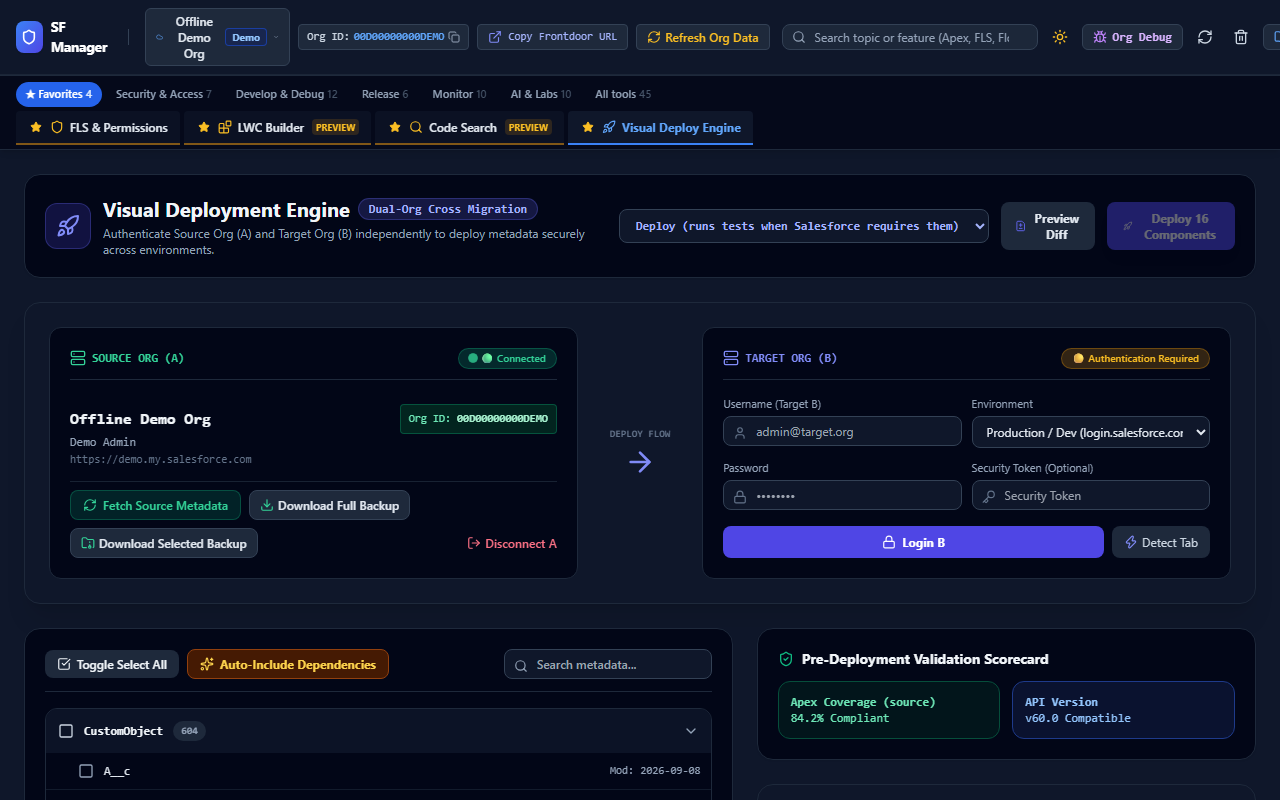
- Source org (A): your connected org is used automatically. Click Fetch Source Metadata to list its real components.
- Target org (B): click Detect Tab while logged into the target in another tab, use your login, or choose Use connected org as target to redeploy into the same org.
- Search and tick components. Auto-Include Dependencies adds what they need.
- Choose a mode:
- Validate Only: a full check with nothing saved. Do this first for production.
- Deploy: runs tests automatically whenever Salesforce requires them (Apex to production or Developer Edition).
- Deploy, skip tests: sandboxes only.
- Click Deploy. The extension retrieves the real components from the source, snapshots the target's current versions, deploys, and streams the log.
- Rollback Snapshot redeploys the target's previous versions. Components that didn't exist in the target before can't be removed this way.
Metadata & package.xml LIVE
Pick metadata types (or individual components) and get a ready-to-use package.xml for the Salesforce CLI, Workbench or any CI tool. Copy or download it.
Dependency Analyzer LIVE
See what depends on a field, object, class or flow before you change or delete it. The analyzer is built from Salesforce's own dependency data and lists the impacted flows, Apex and triggers.
Org Health LIVE
One score from four measured areas: test coverage, admin share, code quality (including hardcoded emails found in Apex, triggers and flows) and limit consumption. Anything that couldn't be measured shows "—" instead of a made-up number.
Org Limits LIVE
Daily API requests, data and file storage, daily async Apex executions and Salesforce user licenses, each with a usage bar and a warning colour as it fills.
Scheduled Jobs LIVE
Every scheduled job with its type, cron expression, next run and last run. Status is shown as Scheduled, Running, Completed or Failed.
Approvals LIVE
All approval processes, plus every pending approval, oldest first. Items waiting 3+ days are flagged as stuck. Approve or Reject right from the list.
Platform Events LIVE
List your platform events, pick one, edit the generated JSON payload and Publish. This is a real event that fires your triggers and flows, which makes it ideal for testing subscribers.
Named Credentials & Remote Sites LIVE
Every outbound integration endpoint: Named Credentials (with their callout: name) and Remote Site Settings. Insecure setups are flagged, such as http:// endpoints, anonymous principals and inactive sites.
Preview tools PREVIEW
These show what's coming, using sample data. They never read from or write to your org:
| Tool | What it will do |
|---|---|
| AI Copilot / AI Solution Builder | Generate SOQL, Apex and LWC from a description (today: templates) |
| Self-Healing Org, Knowledge Graph, Time Machine | Detect broken references, map metadata relationships, compare snapshots over time |
| Live Activity Stream, CDC Streaming | Watch platform events and change data capture in real time |
| Flow Error Inbox, Email & Notification Logs | Collect failed flow interviews and email delivery problems |
| Apex Replay Debugger, SLDS Validator, SFDX Companion | Step through logs, check SLDS usage, generate CLI commands |
| Auto Docs, Salesforce Documenter, Reports | Generate org documentation and reports |
| Sandbox Sync, Data Utilities, Deployment (simple), Plugin System | Sandbox comparison, data tools, simple deploys, extensions |
Troubleshooting
| Problem | Fix |
|---|---|
| "No active Salesforce tab session found" | Open a Salesforce tab you're logged into, then click Re-Detect Tab Session. |
| Red banner "Couldn't reach your org" / 401 | Your Salesforce session expired. Refresh the Salesforce tab (log in again if asked) and click Retry. |
| FLS Apply skipped some fields | Some standard fields and standard profiles can't be changed through the API. Those are skipped and listed, not silently ignored. |
| Coverage is 0% after a deploy | Coverage comes from the last test run. Click Run All Tests, then reload coverage. |
| Deploy fails with "jobs pending" | Abort the scheduled job using that Apex, or allow deployments with pending jobs in Setup → Deployment Settings. |
| Nothing shows in a tool | Tools load on click. Look for the Load data button. |
Privacy & security
The extension talks directly from your browser to your Salesforce org. There's no server in between and no analytics. Session tokens stay in the browser's session storage and are never logged. Read the full privacy policy.